How to use the tracker
Track your EXP per hour, mesos per hour, drops and potion costs in MapleStory Classic. Share your game
and play: there's nothing to set up or mark.
Start tracking in 3 steps
- 1Log in with Discord in Chrome or Edge on your PC.
- 2Go to Live, press Choose the game window, open the Window tab in the popup, click MapleStory and press Share.
- 3Play. The tracker finds your EXP bar, inventory, quick slots and pickup messages by itself, every time you start, and begins right away. A green note tells you what it found.
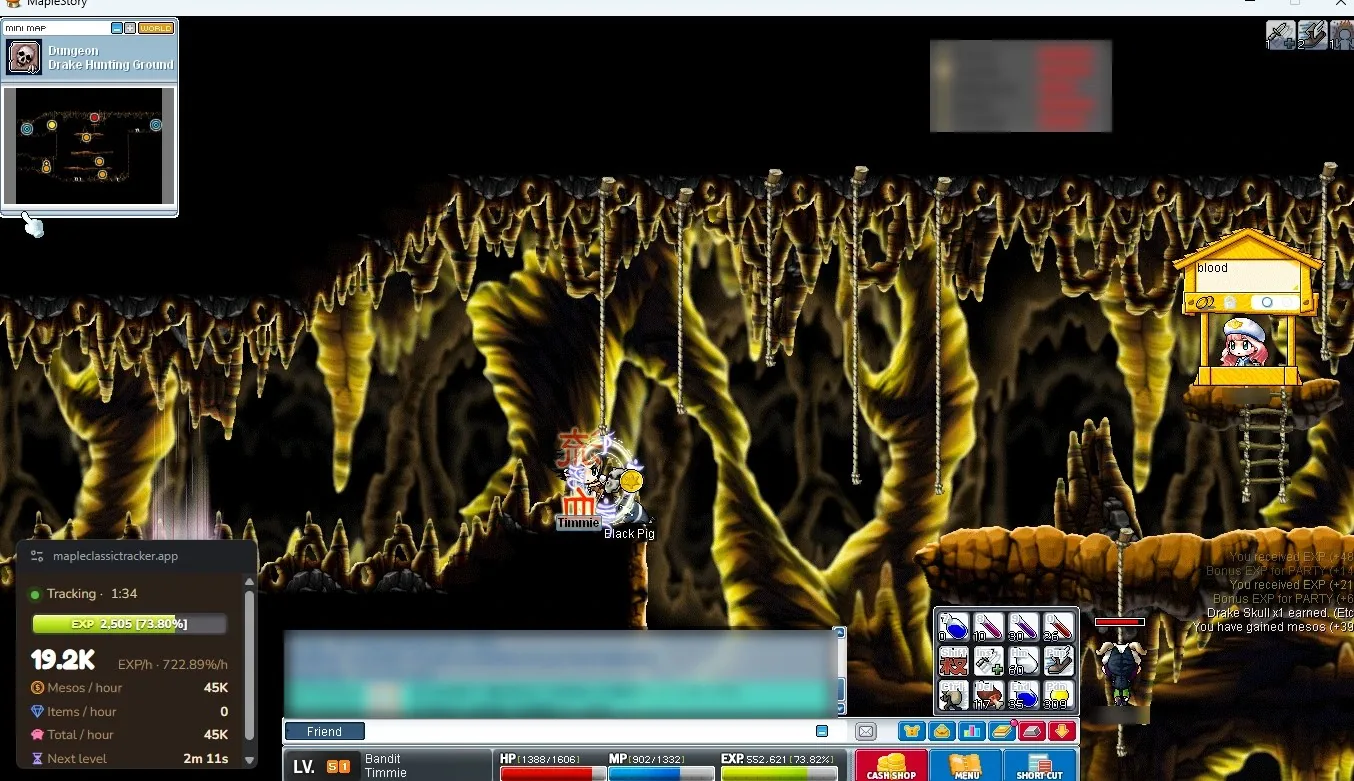
EXP
Pickup messages
Live pop-out
Window or fullscreen
- Both work, at any screen resolution. A stretched fullscreen game is measured and shrunk back to the game's own size, so the tiny numbers can still be read. In a window they're a little sharper still.
- Switching mid-session is fine (Alt+Enter, or resizing the window): the tracker notices, finds everything again within a few seconds and the session simply goes on.
- Picture black after going fullscreen? Some PCs don't pass on a fullscreen game window. Stop & save, start again and pick the Entire screen tab instead of Window (only while the game is fullscreen).
Tips for the best results
- Don't minimize the game while tracking. Other windows on top of it are fine.
- Open your inventory now and then, a minute or more apart: your mesos are counted each time it's open.
- Press Pop-out to keep a small window with your rates on top of the game.
- Turn on Profit after potions (live page or pop-out) to see what you really earn: the tracker reads the potions in your quick slots and takes the ones you use off your mesos and drops, at general store prices. Keep your potions in the quick slots and the quick slots on screen.
- Fill in the map or spot, so your sessions show which place gives the best EXP and mesos.
- It only reads a picture of your screen, like Discord screen-sharing. Nothing touches the game itself.
Check that it works
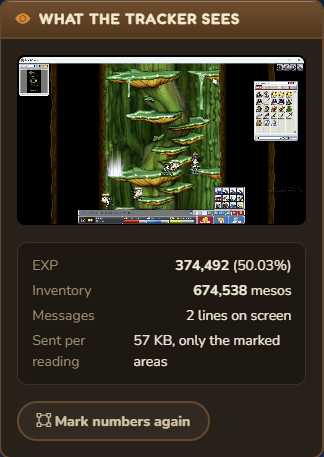
On the live page, What the tracker sees shows the last reading:
- EXP should be the same as in your game.
- Inventory shows your mesos while the inventory is open, "closed" otherwise.
- Messages shows a few lines when messages are on screen. Equips and scrolls you pick up appear under Equips & scrolls picked up, valued at cozy.markets prices.
A number wrong? Stop & save and start again: everything is looked
for again at every start. Still wrong? Press Mark numbers again (below the picture) and then Find them automatically.
Only if it can't find your numbers
You normally never need this. Finding everything by itself only needs the EXP bar in view. When it can't (for example a window covered the EXP bar, or the game is bigger than your screen), the marking screen opens instead.
- First close what was in the way and press Find them automatically at the top of that screen.
- Still nothing? Mark them by hand once, as below.
Mark the numbers by hand, step by step
1The marking screen
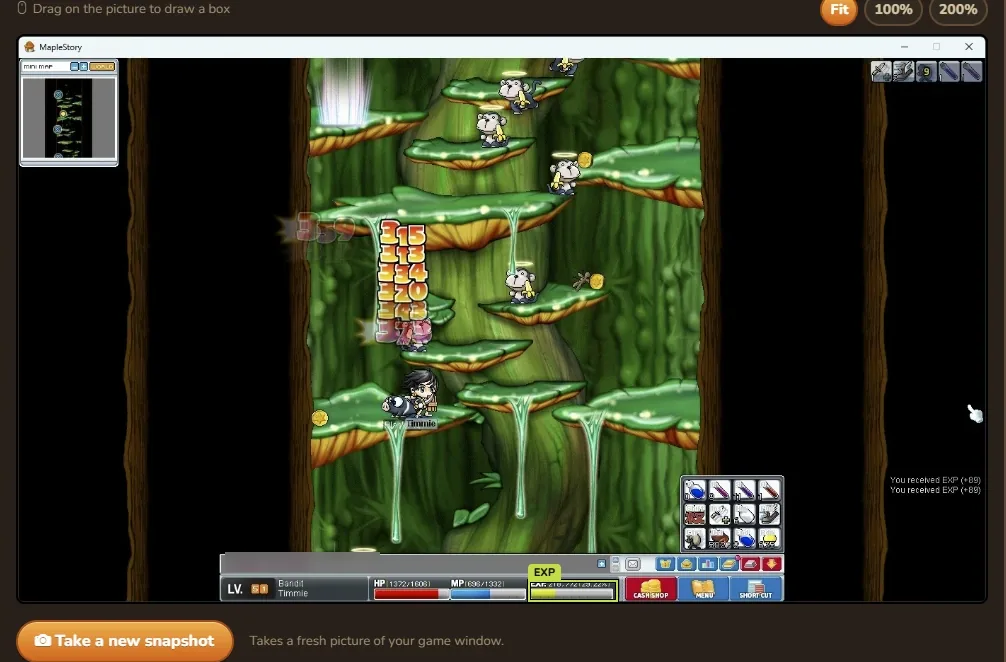
- Drag on the picture to draw a box. Drawing again replaces it.
- Press 200% to zoom in: the numbers are small.
- Take a new snapshot takes a fresh picture of your game, for example after opening your inventory.
- Under the picture you see what the tracker reads in your box, so you know straight away if it's right.
2The EXP numbers
![The status bar with a box around the EXP numbers 552,621 [73.82%]](/static/guide/exp.webp)
EXP
Box the numbers next to EXP. in the status bar at the bottom,
like 552,621 [73.82%]. It doesn't have to be exact. Then press Next: mesos.
Not the "You received EXP (+48)" messages on the right: those come and go.
3Your mesos (optional)
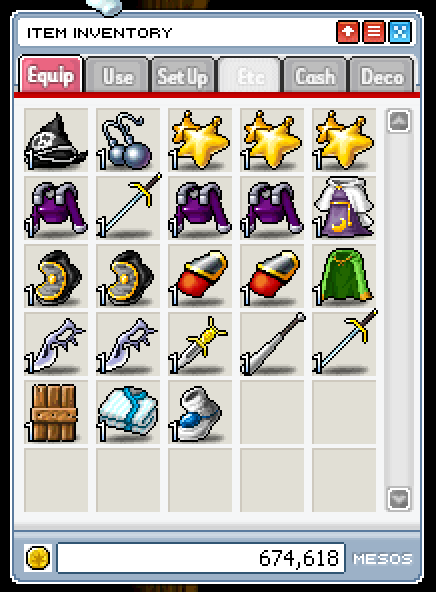
Inventory marker
Mesos
- aOpen your inventory in the game (default key I) and press Take a new snapshot.
- bChoose Inventory marker and box only the ITEM INVENTORY title bar, not the whole window.
- cChoose Meso amount and box the number at the bottom, then press Next: loot (or Skip mesos).
4The pickup messages (optional)
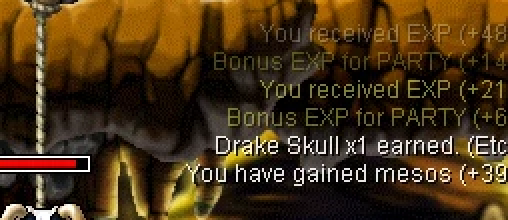
Pickup messages
Equips and scrolls you pick up show up as a message like "Brown Jester x1 earned." in the bottom-right corner.
Make the box 5 or 6 lines tall, all the way to the right edge of the window,
then press Save. Tracking starts right away.
Something not right?
EXP per hour or %/h looks crazy: make sure nothing covers the EXP bar,
then Stop & save and start again.
"The game changed size… finding your EXP bar again" stays on screen:
the picture may be black after going fullscreen. Share your Entire screen instead (see Window or fullscreen).
Items stay at 0: check that Messages shows lines when you pick something up.
Only equips and scrolls with a price on cozy.markets count.
No mesos per hour: open your inventory at least twice, a minute or more apart.
Potions not counted: keep them in your quick slots with the quick slots on screen,
and turn on Profit after potions.
"No picture from the game window": the game is minimized. Keep it open; it can sit behind other windows.
Still not right, or an idea? Report a bug or send feedback.